More people now start with AI: they read Google’s AI Overviews or ask ChatGPT, Perplexity, and Gemini before they ever click a normal result. That traffic is small today but growing fast, and it tends to convert well, so you want to see it in your analytics. The catch is that AI traffic is only partly trackable, and most guides miss the crucial distinction. This guide explains exactly how to track AI Overview traffic and AI assistant traffic in GA4 and GTM, what you can measure, and what you cannot.
Quick answer: There are two kinds of “AI traffic”, and only one is cleanly trackable. AI assistant referrals (clicks from ChatGPT, Perplexity, Gemini, Copilot, and Claude) arrive with a referrer, so you can isolate them in GA4 using a regex of AI domains, ideally as a custom channel group. Google AI Overview clicks are not separated out: Google attributes them to google / organic, so you can only approximate them with text-fragment tracking in GTM and cross-check with Search Console.
Why tracking AI traffic matters now
AI referral is still a small slice of most sites’ traffic today, but it is climbing quickly, and the visitors it sends tend to be high-intent. Contentsquare reports that AI-referred visitors convert at several times the rate of typical search visitors, and projects AI referral to rival organic search within a few years. Whatever the exact numbers, the direction is clear: instrument it now, while it is small, so you can see it grow and prove its value. If AI search matters to you, pair this with answer engine optimisation and AI SEO / GEO.
The two kinds of “AI traffic” (and why only one is easy to track)
This is the distinction most guides skip, and it changes everything.
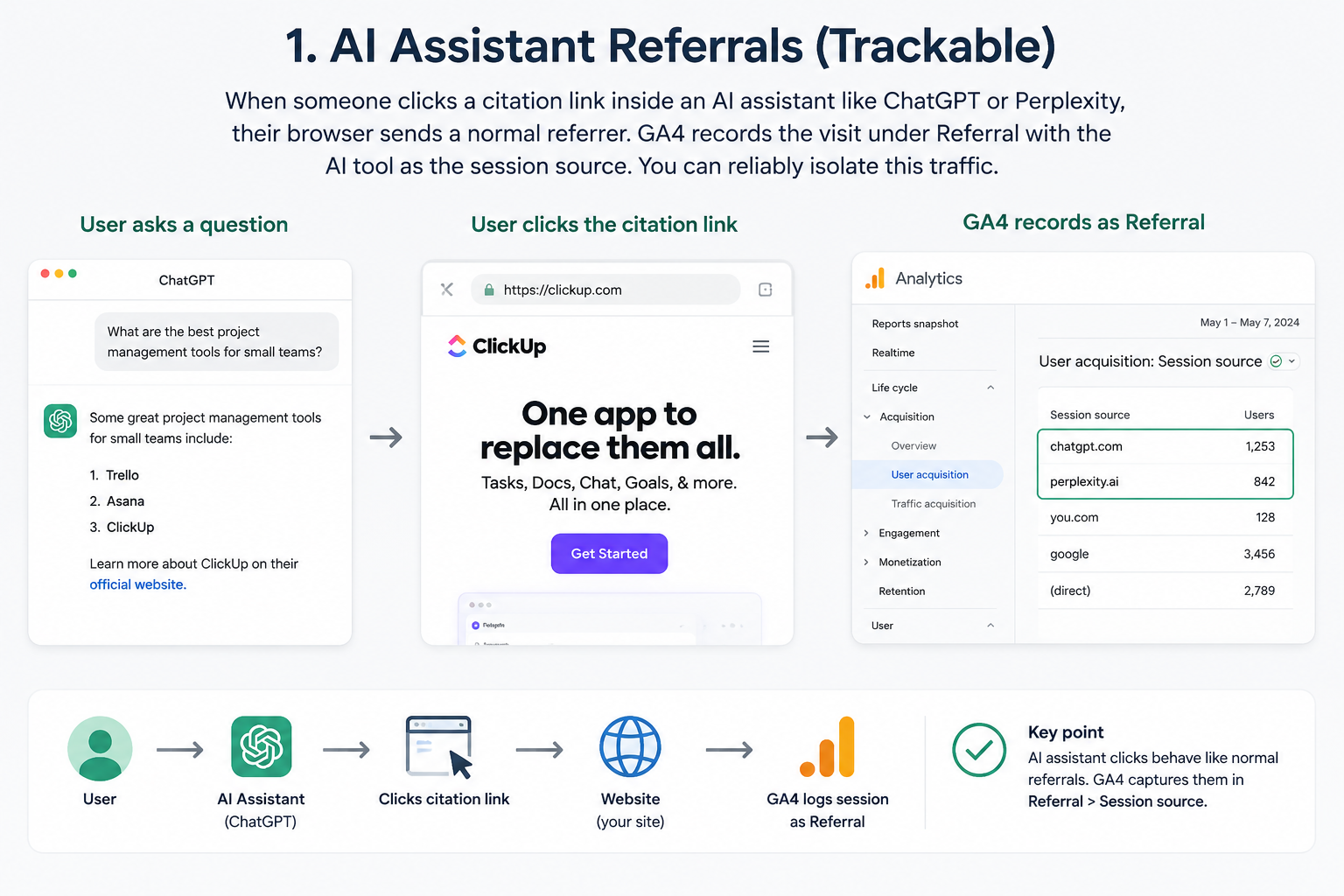
1. AI assistant referrals (trackable)
When someone clicks a citation link inside an AI assistant like ChatGPT or Perplexity, their browser sends a normal referrer. GA4 records the visit under Referral with the AI tool as the session source. You can reliably isolate this traffic.
2. Google AI Overview clicks (not cleanly trackable)
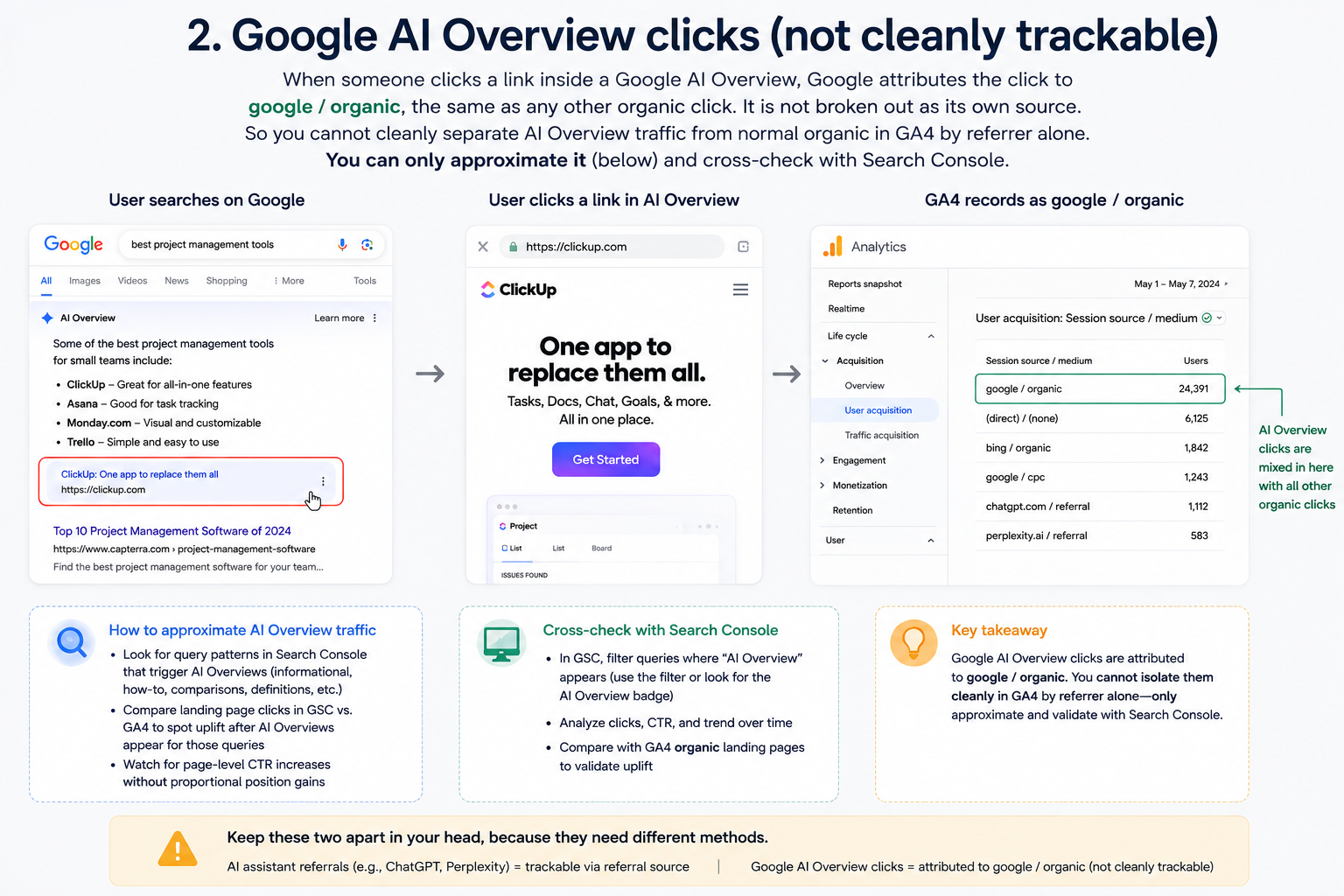
When someone clicks a link inside a Google AI Overview, Google attributes the click to google / organic, the same as any other organic click. It is not broken out as its own source. So you cannot cleanly separate AI Overview traffic from normal organic in GA4 by referrer alone. You can only approximate it (below) and cross-check with Search Console.
Keep these two apart in your head, because they need different methods.
The AI referrer domain list (copy and paste)
To catch AI assistant referrals, you match their domains. The core assistants:
|
AI tool |
Referrer domain(s) |
|
ChatGPT |
chatgpt.com, chat.openai.com |
|
Perplexity |
perplexity.ai |
|
Google Gemini |
gemini.google.com |
|
Microsoft Copilot |
copilot.microsoft.com |
|
Claude |
claude.ai |
|
DeepSeek |
deepseek.com |
|
Meta AI |
meta.ai |
|
Grok |
grok.x.com, x.ai |
|
Mistral |
mistral.ai |
|
You.com |
you.com |
A ready-to-paste regex for GA4 (core assistants, kept short to respect GA4’s character limit):
chatgpt\.com|chat\.openai\.com|perplexity\.ai|gemini\.google\.com|copilot\.microsoft\.com|claude\.ai|deepseek\.com|meta\.ai|you\.com|grok\.x\.com|x\.ai|mistral\.ai
New AI tools appear constantly, so treat this list as living and update it every few months.
Method 1: Build a GA4 custom channel group for AI traffic
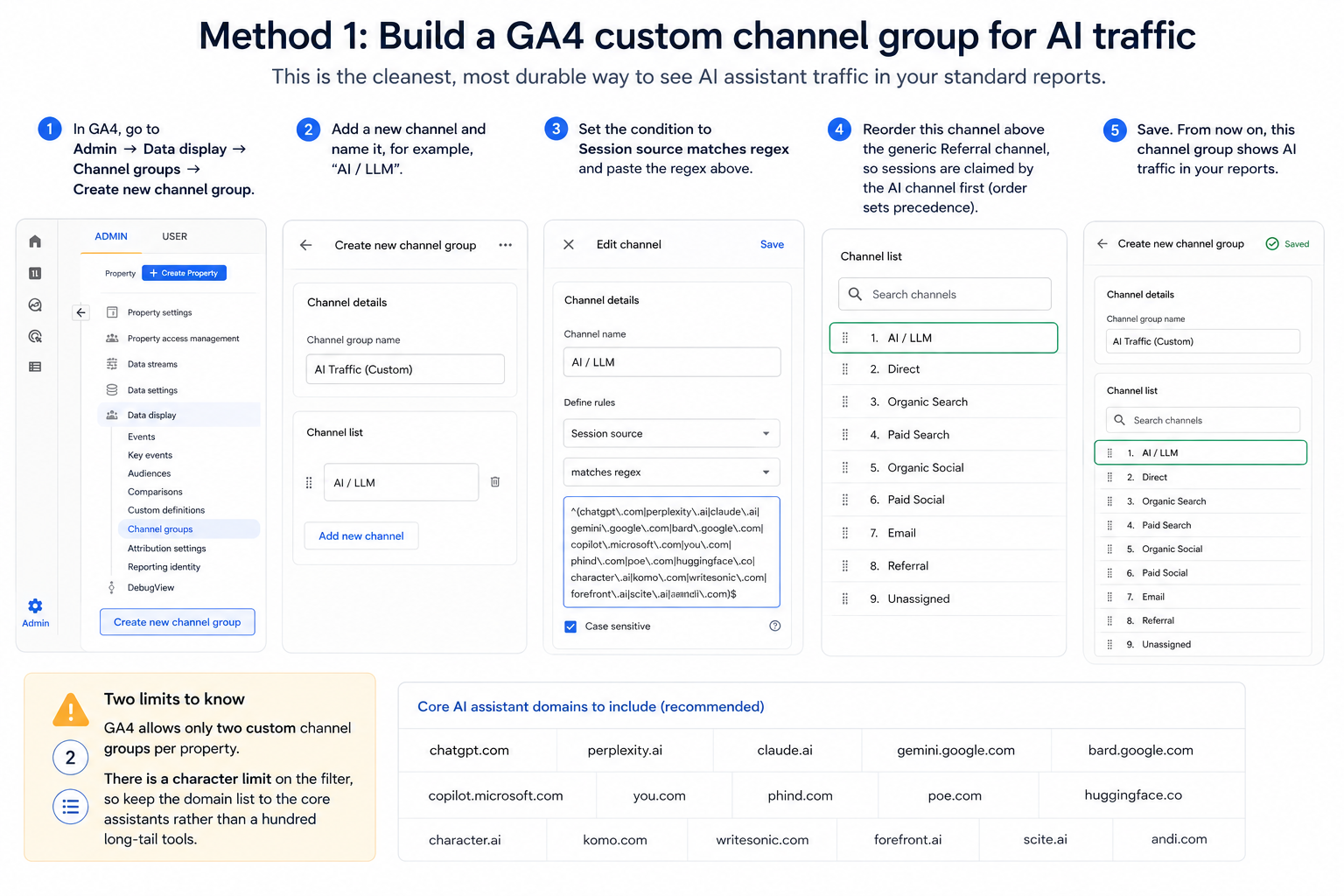
This is the cleanest, most durable way to see AI assistant traffic in your standard reports.
- In GA4, go to Admin → Data display → Channel groups → Create new channel group.
- Add a new channel and name it, for example, “AI / LLM”.
- Set the condition to Session source matches regex and paste the regex above.
- Reorder this channel above the generic Referral channel, so sessions are claimed by the AI channel first (order sets precedence).
- Save. From now on, this channel group shows AI traffic in your reports.
Two limits to know: GA4 allows only two custom channel groups per property, and there is a character limit on the filter, so keep the domain list to the core assistants rather than a hundred long-tail tools.
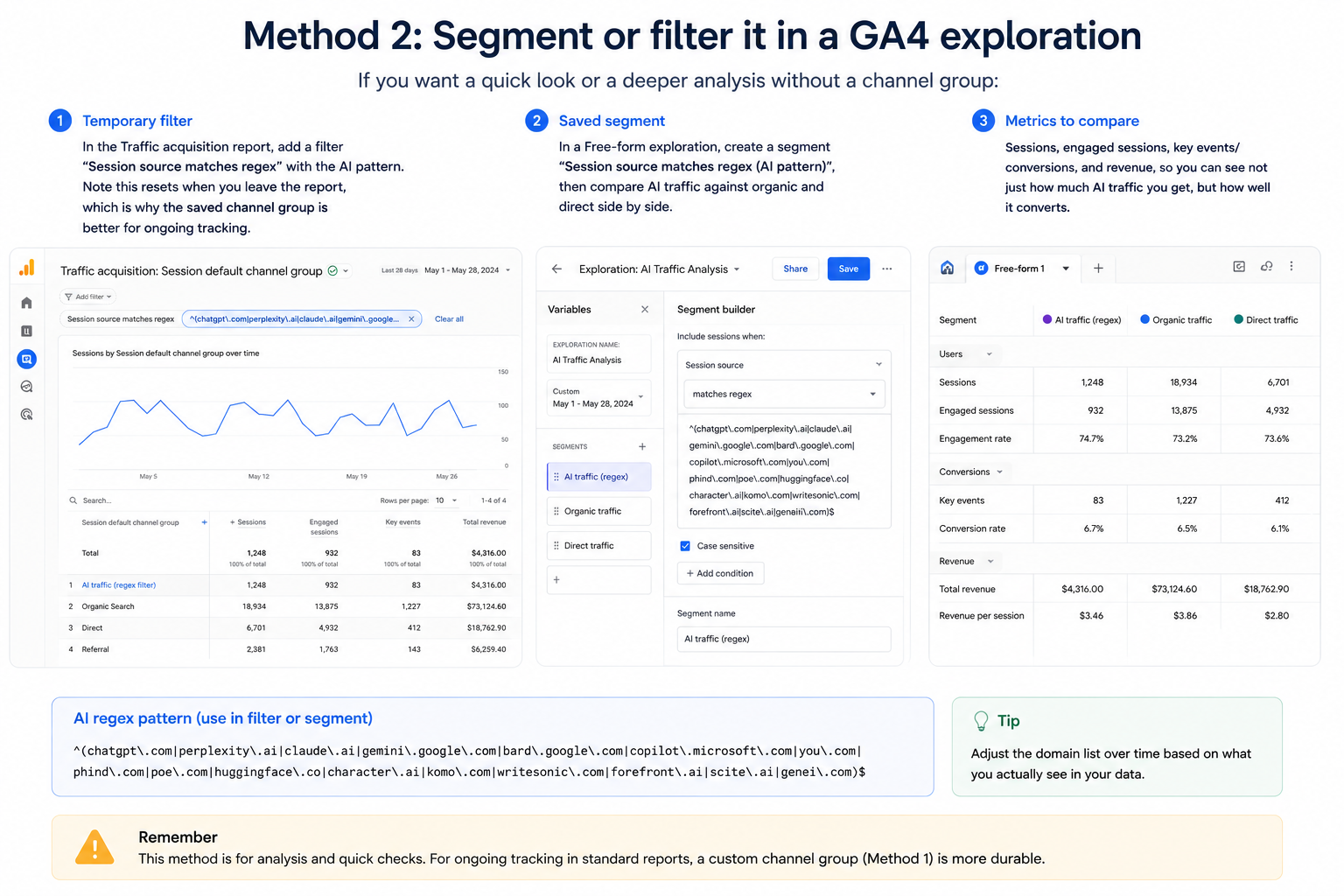
Method 2: Segment or filter it in a GA4 exploration
If you want a quick look or a deeper analysis without a channel group:
- Temporary filter: in the Traffic acquisition report, add a filter “Session source matches regex” with the AI pattern. Note this resets when you leave the report, which is why the saved channel group is better for ongoing tracking.
- Saved segment: in a Free-form exploration, create a segment “Session source matches regex (AI pattern)”, then compare AI traffic against organic and direct side by side.
- Metrics to compare: sessions, engaged sessions, key events/conversions, and revenue, so you can see not just how much AI traffic you get, but how well it converts.
Method 3: Track AI Overview clicks with GTM (text fragments)
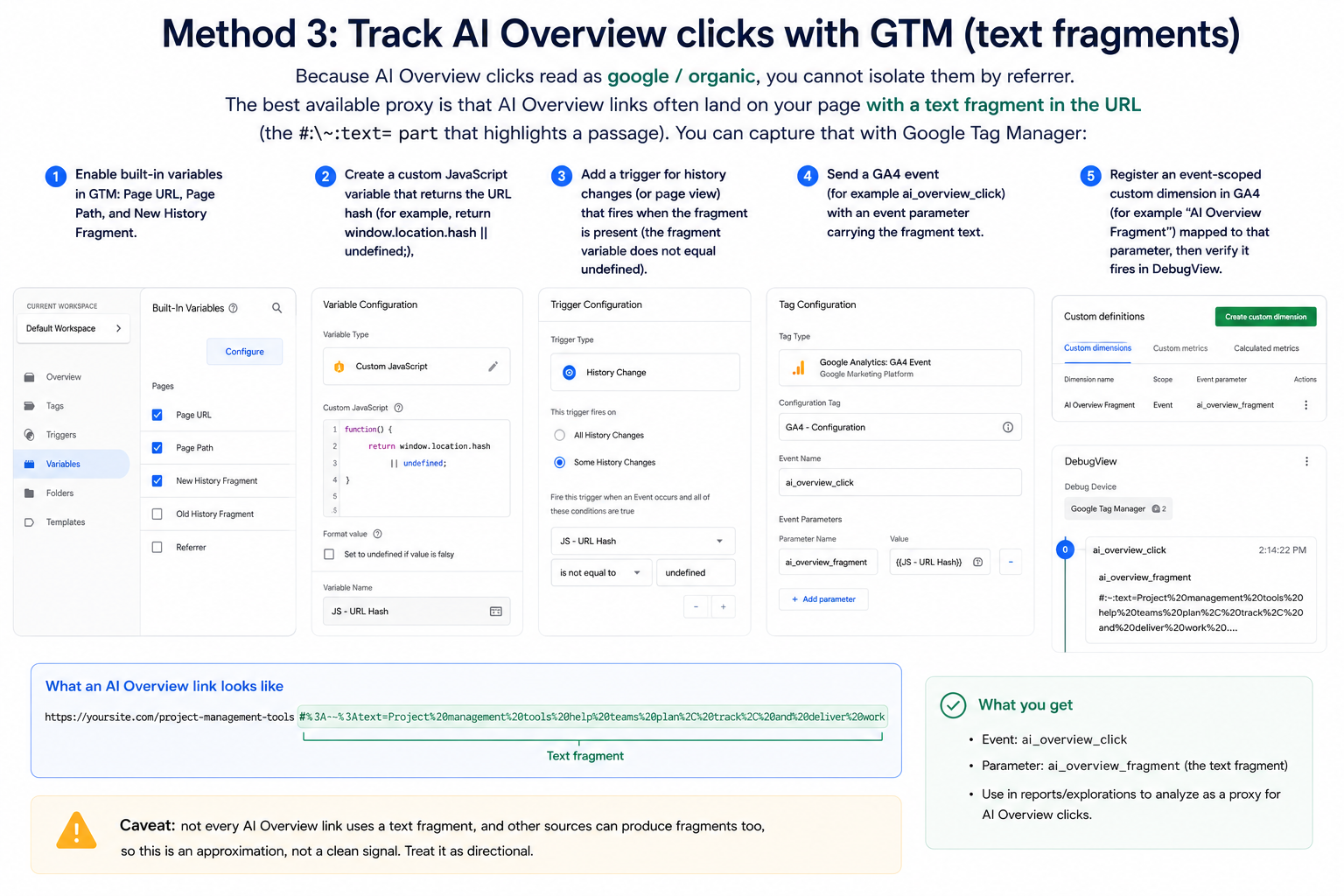
Because AI Overview clicks read as google / organic, you cannot isolate them by referrer. The best available proxy is that AI Overview links often land on your page with a text fragment in the URL (the #:~:text= part that highlights a passage). You can capture that with Google Tag Manager:
- Enable built-in variables in GTM: Page URL, Page Path, and New History Fragment.
- Create a custom JavaScript variable that returns the URL hash (for example, return window.location.hash || undefined;).
- Add a trigger for history changes (or page view) that fires when the fragment is present (the fragment variable does not equal undefined).
- Send a GA4 event (for example ai_overview_click) with an event parameter carrying the fragment text.
- Register an event-scoped custom dimension in GA4 (for example “AI Overview Fragment”) mapped to that parameter, then verify it fires in DebugView.
Caveat: not every AI Overview link uses a text fragment, and other sources can produce fragments too, so this is an approximation, not a clean signal. Treat it as directional.
Method 4: Cross-check with Google Search Console
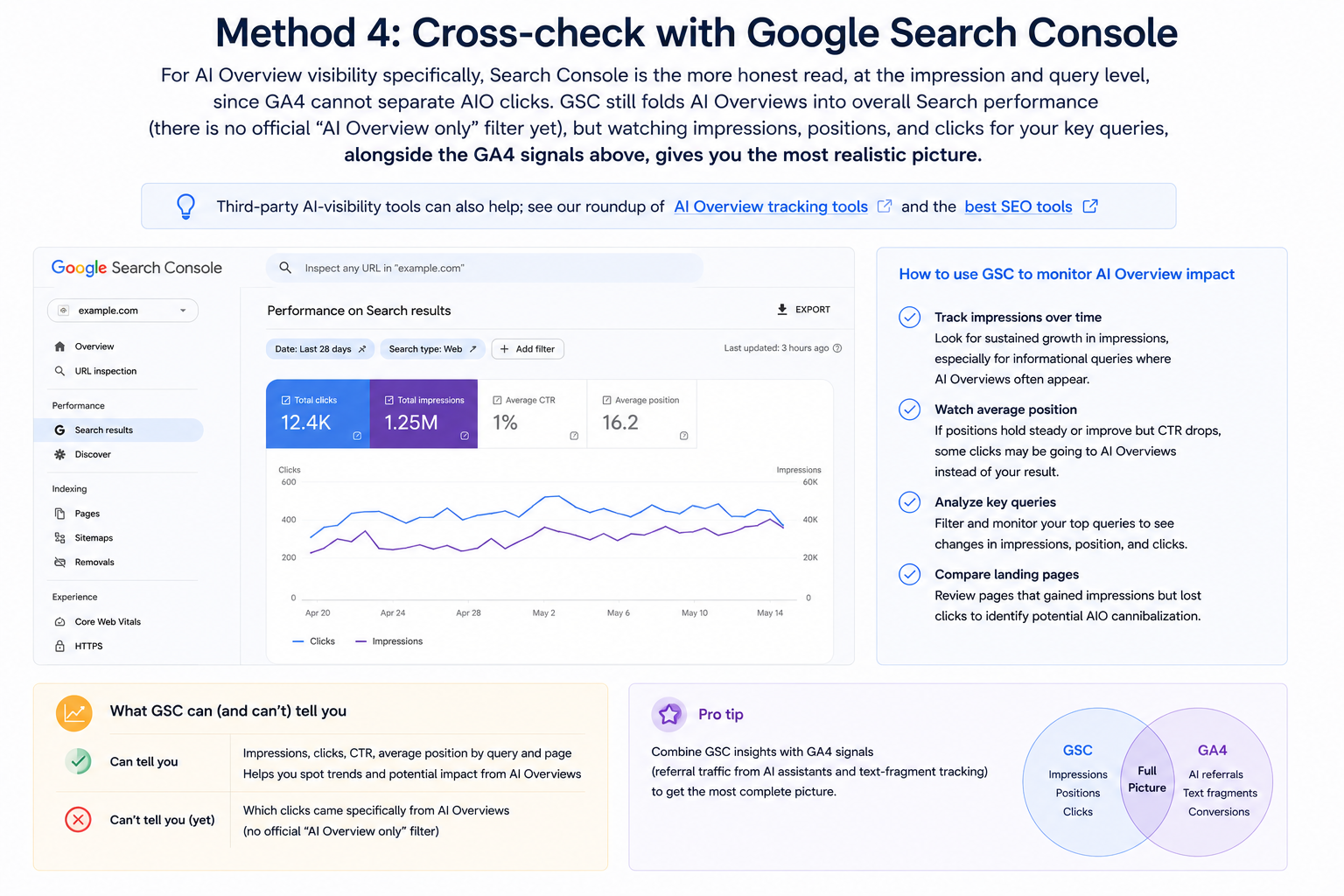
For AI Overview visibility specifically, Search Console is the more honest read, at the impression and query level, since GA4 cannot separate AIO clicks. GSC still folds AI Overviews into overall Search performance (there is no official “AI Overview only” filter yet), but watching impressions, positions, and clicks for your key queries, alongside the GA4 signals above, gives you the most realistic picture. Third-party AI-visibility tools can also help; see our roundup of AI Overview tracking tools and the best SEO tools.
What GA4 cannot tell you (limitations)
Be honest about the gaps:
- Impressions without clicks are invisible. GA4 only sees clicks. If an AI answer cites you but nobody clicks, GA4 shows nothing.
- AI Overview clicks are not cleanly separable from organic, as covered above.
- Some AI traffic shows as direct / none. Native mobile apps and stripped referrers can arrive with no source, so they land in Direct.
- Referrers can be missing or spoofed, so the picture is never perfect.
- Explorations can sample on large or complex queries.
- Domains change fast, so your regex needs periodic maintenance.
Turn AI traffic data into action
Tracking is only useful if you act on it. Once you can see which landing pages AI sends traffic to, audit those pages: AI-referred visitors often arrive with a specific, prompt-driven question and a shorter journey, so make sure the page answers it fast and has a clear next step. Compare their conversion rate to organic, and if AI traffic converts well, that is a strong case to invest more in getting cited by AI. That is the job of GEO, and our guide on getting cited inside ChatGPT, Perplexity, Gemini, and Copilot covers how.
Frequently asked questions
Can you see AI Overview traffic separately in GA4?
Not cleanly. Google attributes AI Overview clicks to google / organic, so they are not broken out. You can approximate them with text-fragment tracking in GTM and cross-check visibility in Google Search Console.
Which referrer domains identify ChatGPT, Perplexity, Gemini, and Copilot traffic?
Mainly chatgpt.com and chat.openai.com (ChatGPT), perplexity.ai (Perplexity), gemini.google.com (Gemini), copilot.microsoft.com (Copilot), and claude.ai (Claude). Match these as session sources in GA4.
What is the difference between AI Overview traffic and AI assistant traffic?
AI assistant traffic is a click from a tool like ChatGPT or Perplexity, which sends a referrer you can track. AI Overview traffic is a click inside Google’s AI Overview, which Google attributes to organic, so it cannot be cleanly separated.
Why does some AI traffic show up as direct instead of referral?
Native AI apps and stripped referrers can arrive with no source information, so GA4 files them under Direct. This is a known gap.
Do I need a custom channel group, or is a filter enough?
A filter is fine for a quick look, but it resets when you leave the report. A saved custom channel group gives you ongoing, consistent AI-traffic reporting.
Is Search Console better than GA4 for AI Overview visibility?
For AI Overviews specifically, yes, GSC gives a more honest read at the impression and query level, since GA4 cannot separate AIO clicks. Use both together.
How often should I update my AI referrer regex?
Every few months, since new AI tools launch and domains change. Treat the list as living.
Get the full picture of your AI search performance
Tracking AI traffic is the first step; getting cited by AI is the goal. If you want help measuring and growing your visibility in AI search, talk to MediaPlus Digital. Explore our AI SEO / GEO services and answer engine optimisation approach, built on strong SEO.