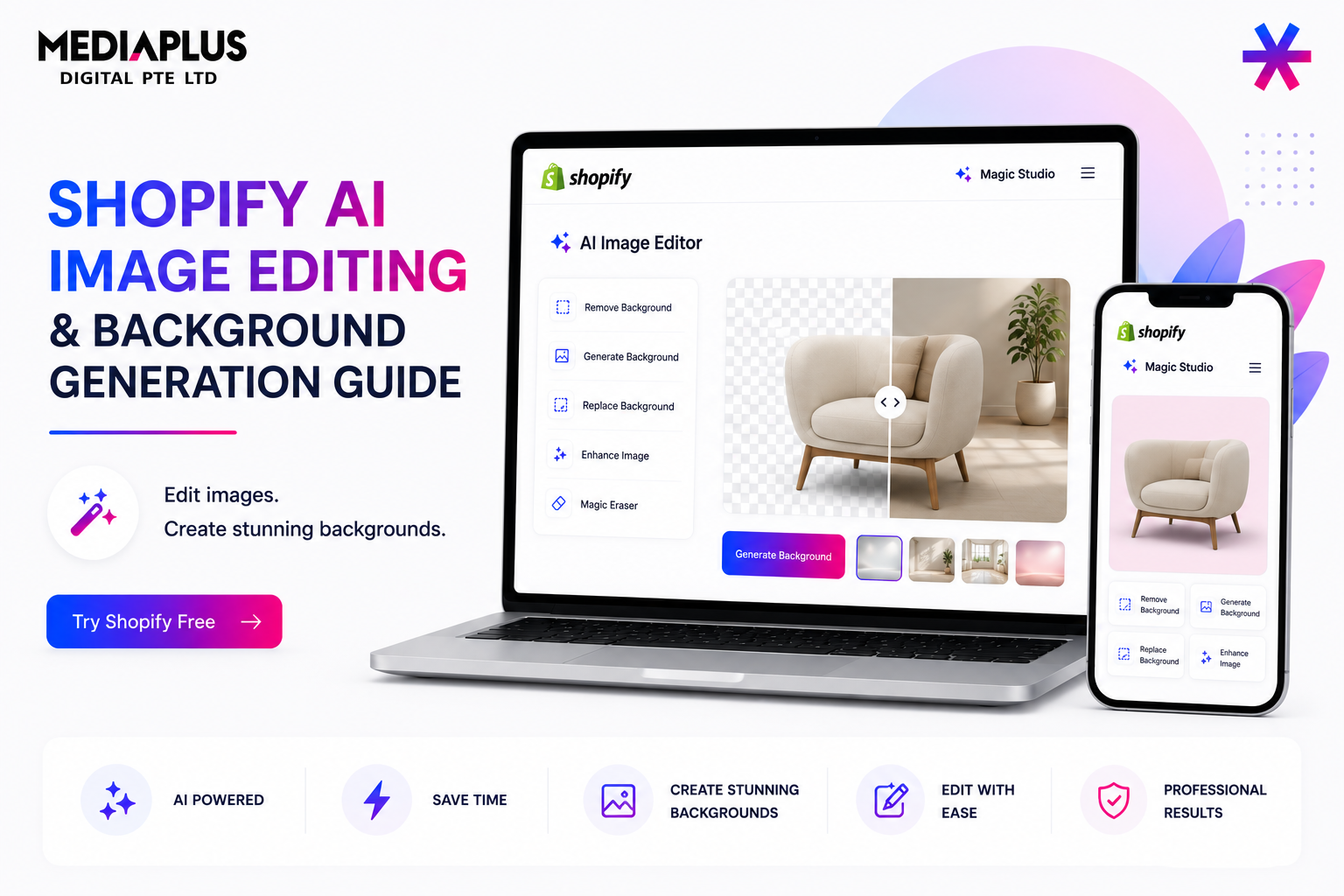
Product photography sets the tone for every Shopify listing, but professional shoots can be expensive and time-consuming. Shopify’s built-in AI image editor lets you change backgrounds, generate scenes, and clean product photos directly inside the admin without relying on third-party apps.
This guide covers where the tools live, how to use them, important file limitations, and practical workflows for scaling catalogue imagery.
What It Is and Where It Lives
Shopify AI image tools sit inside the file editor as part of the Shopify Magic feature set.
- Open a media file from a product or Content → Files.
- Click the image thumbnail to open the File Editor.
- Select Color Background, Generate, or Crop and Transform.
- Preview changes and save.
No additional app installation is required.
The Three Core Tools
Color Background
Automatically removes the existing background and replaces it with a solid colour or transparent background. Shopify detects the subject automatically and allows manual adjustments when needed.
This works especially well for creating clean catalogue images with consistent styling.
Generate
Generate creates entirely new AI backgrounds around your product based on written prompts.
Example prompts:
- “Bright studio with soft shadows”
- “Product on a marble kitchen counter with morning light”
- “Sunny park with trees and grass”
- “Professional product photography with warm lighting”
The product remains the subject while only the surrounding environment changes.
Crop and Transform + Extend
Standard cropping and reframing tools are included alongside Extend Image (outpainting), which expands the image canvas and fills additional space around the product.
This is useful when converting narrow product images into banners or wider layouts.
Note that Extend is not available in the mobile app.
File and Resolution Rules That Affect Quality
| Rule | Details |
|---|---|
| Transparent background | Must be saved as PNG |
| Generated resolution | Approximately 1 MP based on aspect ratio |
| Larger source images | Downscaled to the target size |
| Smaller source images | Upscaled automatically |
| Format | Keeps original format unless transparency requires PNG |
| Watermark | Invisible AI watermark cannot be removed |
The 1 MP limitation is important. AI-generated images work well for thumbnails, product grids, and lifestyle images, but may appear soft for large hero banners and zoom-focused galleries.
Plan Requirements and Cost
Media generation is available on Basic, Grow, Advanced, and Shopify Plus plans. Shopify Starter is excluded.
Shopify currently offers this functionality without additional cost, although availability may change over time.
A Practical Workflow for a Catalogue
- Shoot once and standardise: Use Color Background to create a consistent appearance.
- Choose several brand scenes: Keep visual styles consistent.
- Generate and review: Inspect every image at full size for distortions.
- Save transparent images as PNG: Useful for ads, themes, and marketing assets.
- Add alt text: The AI tool does not generate image alt text.
Best Practices for Better Results
- Use high-quality source images with clear subject separation.
- Keep compositions simple.
- Write specific prompts instead of broad descriptions.
- Save generated scenes immediately.
Limits to Plan Around
- Only one AI-generated scene at a time
- Invisible watermarks cannot be removed
- Extend is unavailable on mobile
- 1 MP resolution limits larger imagery
- Reflective and detailed products may generate inconsistent results
Where This Fits for a Singapore Store
For local SMEs without dedicated photography budgets, Shopify AI tools offer a fast way to create cleaner and more consistent product imagery.
For stronger conversion performance, pair imagery improvements with our conversion rate optimisation and ecommerce website services.
For search visibility, optimized image alt text supports work completed through our Shopify SEO services.
See also our guide on the best AI tools for web design.
FAQ
Do I need an app for Shopify AI image editing?
No. These tools are built directly into Shopify Admin.
Why do generated images sometimes look soft?
AI-generated images are limited to approximately 1 MP and are best suited for smaller visual assets.
Can I remove the watermark?
No. AI-generated images include an invisible watermark.
Which Shopify plans include these tools?
Basic, Grow, Advanced, and Shopify Plus currently support AI image generation.
Building a Shopify store that looks professional and converts better? Explore our ecommerce website services in Singapore and CRO services.