
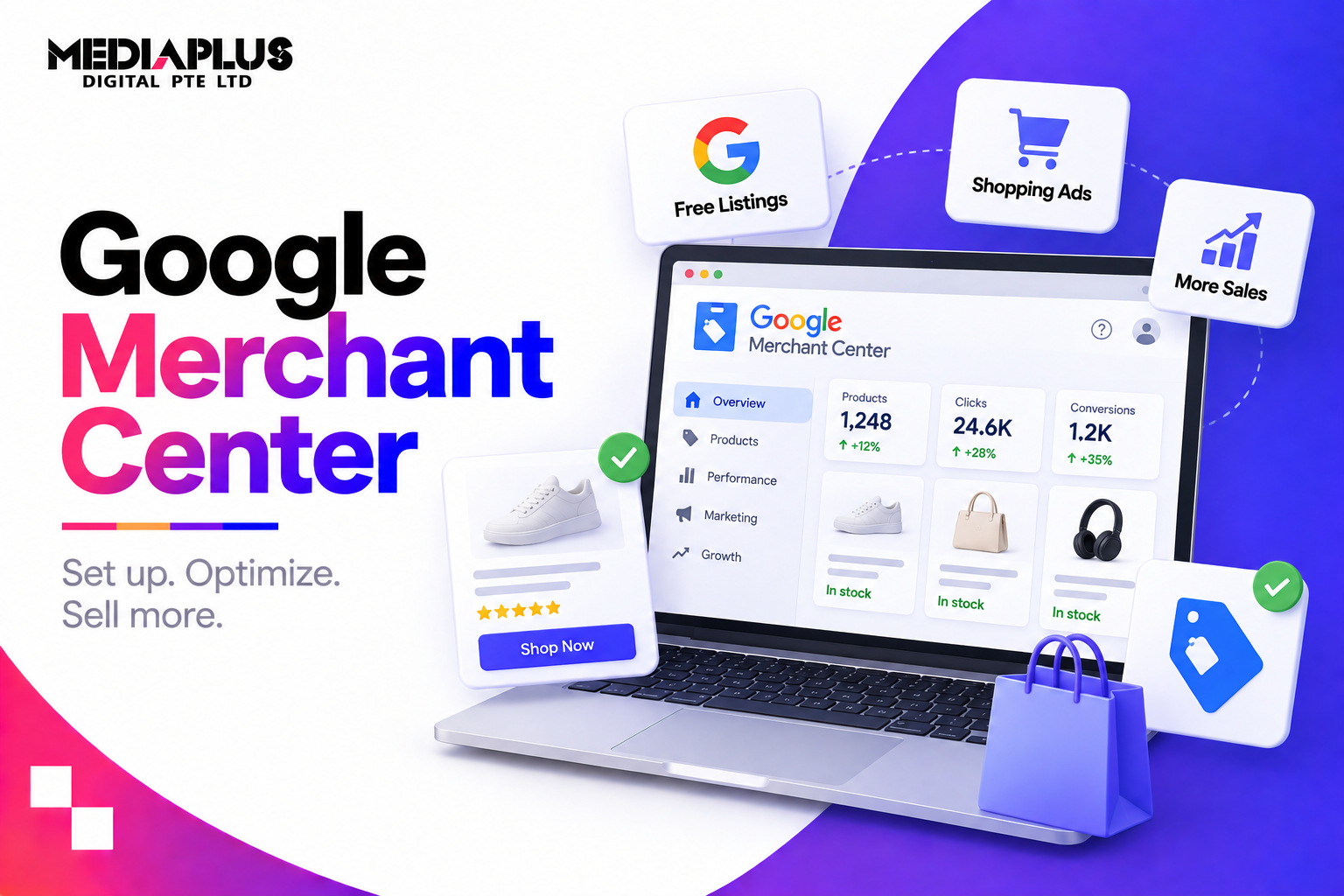
If your products are not in Google Merchant Center, they cannot appear in Google Shopping ads, free product listings, or the Shopping tab, which are exactly where shoppers compare prices before they buy. Setting it up is not difficult, but small mistakes (a price that does not match your site, an unclaimed domain, a missing shipping setting) get products disapproved or accounts suspended. This guide walks through the full setup for a Singapore store, the product data Google requires, and how to fix the most common rejections.
Quick answer: To set up Google Merchant Center for a Singapore store: create an account at merchants.google.com, add your business details, verify and claim your website, set up shipping and returns, then add products through your platform’s Google integration (Shopify or WooCommerce), Google Sheets, a product feed file, or the Merchant API. Price products in SGD including GST, make sure feed prices exactly match your website, enable free listings, and link Google Ads to run Shopping or Performance Max campaigns. Singapore is a supported country for both Shopping ads and free listings.
What is Google Merchant Center?
Google Merchant Center is where you give Google your product information (titles, prices, images, stock status, shipping) so your products can appear across Google. It powers:
- Free product listings in the Shopping tab and other Google surfaces
- Shopping ads and Performance Max campaigns through Google Ads
- Product information in Google Search, Images and YouTube, where eligible
- Local inventory features for stores with physical locations, where eligible
Merchant Center does not run ads by itself. It holds your product data. Google Ads uses that data to run paid campaigns, and Google uses it to show free listings. See our guide to Google Shopping ads.
Singapore support: Singapore is listed by Google as a supported country for Shopping ads and free listings, with Singapore Dollar (SGD) as the currency.
Before you start: get these ready
- A business Google account, ideally on your company domain rather than a personal Gmail
- Access to your website (or your platform admin) to verify and claim the domain
- Accurate shipping costs and delivery times for Singapore
- A clear returns and refunds policy published on your site
- Visible contact details: business address, phone or email
- A secure checkout (HTTPS) and a working payment process
- Product data: titles, descriptions, prices, images, stock status, brand and identifiers
Missing contact details, returns policies or secure checkout are common triggers for Google’s misrepresentation policy, which can suspend an entire account. Fix these first.
Step-by-step setup
Step 1: Create your Merchant Center account
Go to merchants.google.com and sign in with your business Google account. Enter your business name exactly as it appears on your website and in your ACRA registration, and set Singapore as your business country. Most new accounts now use the updated Merchant Center interface, sometimes called Merchant Center Next.
Step 2: Add business information
Add your business address, customer service contact details, and your website URL. Keep these consistent with what customers see on your site.
Step 3: Verify and claim your website
These are two separate steps, and both matter:
- Verify proves you own the website. Use an HTML tag, an HTML file upload, Google Analytics, Google Tag Manager, or your platform’s integration.
- Claim links the website to this Merchant Center account so no other account can submit products for it.
An unverified or unclaimed website is one of the most common reasons products never go live.
Step 4: Set up shipping
Create shipping settings for Singapore that match your checkout exactly: flat rate, free shipping above a threshold, or rates by order value or weight. Include handling and transit times. If Google’s shipping cost differs from what customers pay at checkout, products can be disapproved.
Step 5: Set up returns
Add your return policy details (return window, conditions and any fees). Clear return information builds trust in listings and supports eligibility for certain features.
Step 6: Add your products
Choose the method that fits your store:
|
Method |
Best for |
How it works |
|
Shopify |
Shopify stores |
Install the Google & YouTube app, connect Merchant Center, products sync automatically |
|
WooCommerce |
WordPress stores |
Install the Google for WooCommerce extension, connect and sync |
|
Google Sheets |
Small catalogues |
Fill in a Google-provided template that syncs to Merchant Center |
|
Product feed file |
Medium to large catalogues, other platforms |
Upload an XML, CSV or TSV file, or schedule Google to fetch it from a URL |
|
Merchant API |
Large or fast-changing catalogues |
Developers push product updates programmatically |
Platform integrations are the easiest for most SMEs because prices and stock stay in sync automatically, which prevents the most common disapprovals. See our Shopify design and development and WooCommerce development services.
Step 7: Enable free listings
Make sure the free listings programme is turned on so your products can appear in the Shopping tab at no cost. Many Singapore stores skip this and miss free visibility.
Step 8: Link Google Ads
Link your Google Ads account in Merchant Center settings, then accept the request in Google Ads. This is required before you can run Standard Shopping or Performance Max campaigns using your product data.
Step 9: Monitor diagnostics
After products are submitted, Google reviews them. Check the products and diagnostics sections regularly for disapprovals, warnings and missing information, and fix issues promptly.
Product data Google requires
Getting product data right is what separates listings that perform from listings that are rejected or ignored.
Required for all products
|
Attribute |
What to submit |
Rules to follow |
|
id |
A unique product ID |
Keep it stable; do not change IDs |
|
title |
Product name |
Maximum 150 characters |
|
description |
Product details |
Maximum 5,000 characters |
|
link |
Product page URL |
Must go to the correct product page |
|
image_link |
Main product image URL |
See image rules below |
|
availability |
in_stock, out_of_stock, preorder or backorder |
Must match your website |
|
price |
Price with currency, e.g. 49.90 SGD |
Must match your website; include GST |
Product identifiers and conditional attributes
|
Attribute |
When it is required |
|
brand |
Required for new products (except some media products) |
|
gtin |
Strongly recommended for products with a manufacturer barcode; only submit if correct |
|
mpn |
Required if the product has no manufacturer GTIN |
|
identifier_exists |
Set to “no” if the product genuinely has no GTIN, MPN or brand, such as custom or handmade items |
|
condition |
Required for used or refurbished products |
|
availability_date |
Required when availability is preorder or backorder |
|
item_group_id |
Used to group variants such as sizes and colours |
Singapore-specific data rules
- Price in SGD, including GST where applicable. Google requires prices outside the US and Canada to include VAT or GST.
- Link to your Singapore store, not an overseas version with a different currency.
- Keep prices and stock in sync. Sale prices must match what the landing page shows at the time Google checks.
Image rules
- Use a clear image of the actual product on a clean background.
- No promotional text, watermarks, borders or “SALE” badges on the main image.
- Use high resolution. Google has announced that images must be at least 500 × 500 pixels from 31 January 2027, so meet that standard now rather than fixing thousands of images later.
Optimising listings for performance
Approval is the minimum. These improvements lift visibility and clicks:
- Write descriptive titles: brand, product type and key attributes (size, colour, material, quantity), with the most important words first.
- Use accurate product categories and product types.
- Add GTINs wherever products have them; they help Google match your products correctly.
- Include additional images from different angles.
- Show sale prices using the sale price attribute rather than changing the main price.
- Add product reviews and store ratings where eligible.
- Keep your website’s structured data accurate, which supports automatic updates. See Shopify schema and structured data.
For deeper feed optimisation, see our Google Shopping optimisation guide.
Common disapprovals and how to fix them
|
Issue |
Usual cause |
Fix |
|
Price mismatch |
Feed price differs from the landing page |
Sync via platform integration; update feeds more often |
|
Availability mismatch |
Out-of-stock item marked in stock |
Sync stock automatically |
|
Misrepresentation |
Missing contact details, returns policy, or unclear business information |
Publish full contact details, policies and secure checkout, then request review |
|
Unclaimed website |
Domain verified but not claimed |
Claim the website in business information |
|
Missing identifiers |
Branded products without GTIN or MPN |
Add GTIN or MPN, or set identifier_exists correctly |
|
Image issues |
Promotional overlays, watermarks, broken URLs |
Replace with clean product images on working URLs |
|
Shipping issues |
No shipping settings, or costs differ from checkout |
Configure shipping to match checkout exactly |
|
Landing page errors |
Broken, redirected or slow product pages |
Fix URLs and page errors |
For account-level suspensions, fix the underlying issue completely before requesting a review. Repeated review requests without real changes can delay reinstatement.
Free listings vs Shopping ads vs Performance Max
|
Free listings |
Standard Shopping |
Performance Max |
|
|
Cost |
Free |
Pay per click |
Pay per result, across Google |
|
Where products show |
Shopping tab and other free surfaces |
Shopping ads on Search and Shopping |
Search, Shopping, YouTube, Display, Gmail, Maps |
|
Control |
Minimal |
High: products, bids, search terms |
Lower: automated by Google |
|
Best for |
Every store, always on |
Stores that want control and visibility |
Stores with good data wanting broad reach |
Most Singapore stores should run free listings by default, then add paid campaigns once tracking is set up. See what Performance Max is and Google Performance Max and AI Max.
Frequently asked questions
Is Google Merchant Center free?
Yes. Creating an account and showing products in free listings costs nothing. You only pay when you run Shopping or Performance Max ads through Google Ads.
Is Google Shopping available in Singapore?
Yes. Google lists Singapore as a supported country for Shopping ads and free listings, with prices in Singapore Dollars.
Do I need a GTIN for my products?
It is strongly recommended for products that have a manufacturer barcode, and MPN is required if there is no GTIN. For custom or handmade products with no identifiers, set identifier_exists to “no”.
Should prices include GST?
Yes. Outside the US and Canada, Google requires submitted prices to include VAT or GST, so Singapore prices should match what customers actually pay.
Why were my products disapproved?
The most common causes are price or stock mismatches with your website, missing identifiers, promotional overlays on images, missing shipping settings, and an unverified or unclaimed website. Check the diagnostics section for the exact reason.
How long does Merchant Center approval take?
Product review commonly takes a few days, though it can take longer for new accounts or when issues need fixing. Accounts under misrepresentation review can take significantly longer.
Can I connect Shopify or WooCommerce directly?
Yes. Shopify’s Google & YouTube app and the Google for WooCommerce extension connect your store to Merchant Center and keep product data in sync automatically.
Get your products in front of shoppers
A properly configured Merchant Center account gives your products free visibility on Google and the foundation for profitable Shopping campaigns. If you want your store set up, fixed or optimised, talk to MediaPlus Digital. Explore our Google Shopping ads and e-commerce website development services, with PSG support for eligible SMEs.