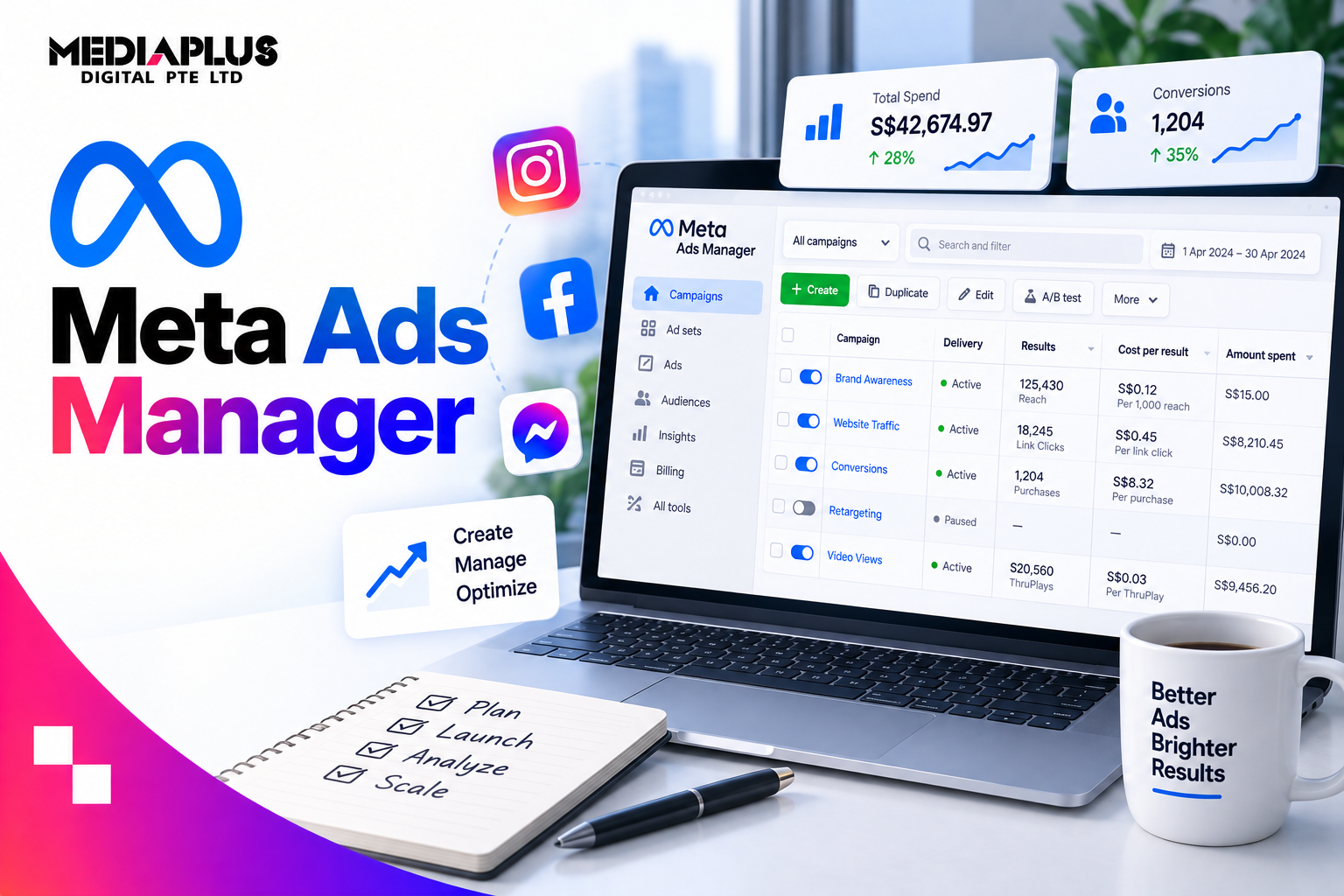
Meta Ads Manager is where you build, run and measure ads on Facebook, Instagram, Messenger and Threads. It is also where many small businesses waste money: the wrong objective, an ad account set to the wrong currency, a pixel that never fired, or a budget spread too thin to leave the learning phase. This guide walks through Ads Manager from account setup to reporting, with the settings that matter, what the 2026 Advantage+ defaults do, Singapore-specific rules and a troubleshooting table for when things go wrong.
Quick answer: To use Meta Ads Manager, set up a Business Portfolio and ad account, add a payment method, connect your Facebook Page and Instagram account, and install the Meta Pixel and Conversions API. Then create a campaign in three levels: choose one of six objectives (Awareness, Traffic, Engagement, Leads, App promotion or Sales), set your budget and audience at the ad set level, and upload your creative at the ad level. Publish, let the ad set gather about 50 optimisation events in a week to exit the learning phase, and judge performance on cost per result, not likes.
What is Meta Ads Manager?
Meta Ads Manager is Meta’s tool for creating and managing paid ads across its apps. You can reach it at adsmanager.facebook.com or through the Meta Business Suite menu.
Ads Manager vs Business Suite vs Business Portfolio:
|
Tool |
Use it for |
|
Ads Manager |
Creating campaigns, targeting, budgets, placements, testing and reporting |
|
Meta Business Suite |
Daily posting, inbox, insights and simple boosted posts |
|
Business Portfolio (formerly Business Manager) |
Ownership of Pages, ad accounts, pixels, catalogues and user permissions |
If you only boost posts from your Page, you are using a small part of what Meta offers. Ads Manager gives you control over objectives, audiences, placements and measurement. See our guide to using Meta Business Suite.
How Ads Manager is structured
Every Meta campaign has three levels:
|
Level |
What you set here |
|
Campaign |
Objective, special ad category, budget type, A/B test |
|
Ad set |
Conversion location, performance goal, audience, placements, budget and schedule |
|
Ad |
Identity (Page and Instagram account), format, creative, text, call to action, destination, tracking |
A simple example: one Sales campaign, with one ad set for new customers and one for past website visitors, each holding three or four ads with different creative.
Before you start: set up the account properly
Mistakes here are the hardest to fix later.
- Create a Business Portfolio at business.facebook.com in your company’s name.
- Add your Facebook Page and Instagram account to the portfolio.
- Create an ad account. Choose the currency (SGD) and time zone (Singapore) carefully, because they cannot be edited later. Changing them means creating a new ad account.
- Add a payment method and billing details. Meta charges GST on ads bought by Singapore advertisers; GST-registered businesses can generally claim it as input tax, so keep your invoices.
- Complete advertiser verification if Meta asks for it. Meta has committed to verifying the identity of advertisers, and Singapore’s new rules make verification a requirement (see below).
- Verify your website domain in Business Settings.
- Install the Meta Pixel and set up the Conversions API. The Pixel tracks actions in the browser; the Conversions API sends events from your server, which fills gaps caused by browser restrictions and ad blockers. Shopify, WooCommerce and most major platforms have built-in integrations.
- Set up your key events, such as Purchase, Lead, CompleteRegistration or Contact, and test them before spending.
- Assign people roles with only the access they need, and turn on two-factor authentication for everyone.
Keep ownership in-house. If you work with an agency, give them partner access to your portfolio rather than letting them create and own your ad account or Pixel.
Singapore rules advertisers should know
- Advertiser verification: Singapore’s Social Media Code under the Online Criminal Harms Act, issued by the Singapore Police Force in August 2026, requires Facebook, Instagram and TikTok to verify advertisers’ identities against government records before they can publish ads targeting Singapore users. The platforms must have these measures in place by 31 January 2027.
- Financial services ads: the same code requires these platforms to block ads offering financial services or products unless the advertiser is licensed by the Monetary Authority of Singapore or another relevant Singapore authority.
- Scam controls: ads suspected of supporting scams, including those using cloaked URLs, must be blocked or removed. Legitimate advertisers should expect stricter review of landing pages.
- Special ad categories: ads about housing, employment, financial products and services, and social issues, elections or politics must be declared as a special ad category, which limits targeting options.
- Industry rules still apply: healthcare, alcohol, education and property ads must also follow Singapore’s own advertising codes and regulations.
Step 1: Choose your campaign objective
Click + Create and pick one of the six objectives. The objective tells Meta which people to show your ads to, so match it to what you actually want.
|
Objective |
Use it when you want |
Example |
|
Awareness |
People to see and remember your brand |
A new café launching in Tanjong Pagar |
|
Traffic |
Visits to a website, app or message thread |
Promoting a blog guide or event page |
|
Engagement |
Messages, video views, post engagement or event responses |
WhatsApp or Messenger enquiries for a salon |
|
Leads |
Contact details through instant forms, calls, messages or your website |
Free consultation requests for renovation |
|
App promotion |
App installs or in-app actions |
A booking or fitness app |
|
Sales |
Purchases or other valuable conversions on your website, app or in messages |
An online store selling skincare |
Common mistake: choosing Traffic when you want sales. Traffic finds people likely to click, not people likely to buy. If you want purchases or leads, choose Sales or Leads and optimise for that event.
Step 2: Set up the campaign level
- Campaign name: use a clear naming convention, for example SG_Sales_Prospecting_Sep2026.
- Special ad category: declare one if your ads are about housing, employment, financial products or politics.
- Advantage+ settings: in 2026, Meta’s campaign setup turns on its Advantage+ automation by default (for budget, audience and placements). You can keep these on or switch individual settings to manual.
- Budget type:
|
Option |
How it works |
Use it when |
|
Campaign budget (Advantage+ campaign budget) |
Meta shifts spend between ad sets automatically |
You have several ad sets and want Meta to favour the best performer |
|
Ad set budget |
You set a fixed budget per ad set |
You need to guarantee spend on a specific audience or test |
- A/B test: turn this on if you want a clean comparison of creative, audience or placement.
Step 3: Set up the ad set level
Conversion location and performance goal
Choose where the result happens (website, app, messaging apps, instant forms, calls) and what Meta should optimise for, such as purchases, leads or landing page views. Pick the event that is closest to real business value that you can still get enough of.
Budget and schedule
- Daily budget spends a set amount per day on average; lifetime budget spreads spend across a date range and lets you set an ad schedule.
- Give each ad set enough budget to generate results. Meta’s guidance is that an ad set needs around 50 optimisation events within 7 days to exit the learning phase. If your goal is purchases and you only get five a week, optimise for an earlier event such as Add to Cart, or combine ad sets.
Audience
|
Option |
What it does |
Best for |
|
Advantage+ audience |
Meta finds people automatically, using your suggestions as guidance |
Most campaigns with good conversion data |
|
Location, age, language |
Basic controls; set location to Singapore or specific areas |
Local businesses with a service area |
|
Detailed targeting |
Interests, behaviours and demographics |
New accounts with little data, niche audiences |
|
Custom audiences |
Website visitors, customer lists, video viewers, Page and Instagram engagers |
Retargeting and excluding existing customers |
|
Lookalike audiences |
People similar to your best customers |
Scaling prospecting |
For customer lists, make sure you have consent to use the data under Singapore’s PDPA. See our guide to retargeting and remarketing in Singapore.
Placements
- Advantage+ placements show ads across Facebook, Instagram, Messenger, Threads and the Audience Network where Meta predicts the best results. This is the usual starting point.
- Manual placements let you choose specific places, for example Instagram Stories and Reels only. Use this when creative only works in one format or a placement performs badly.
Step 4: Set up the ad level
- Identity: select your Facebook Page and Instagram account.
- Format: single image or video, carousel, or collection. Catalogue ads are available for stores with a product catalogue.
- Creative: upload images and videos in several aspect ratios so they fit each placement:
|
Placement |
Recommended aspect ratio |
|
Facebook and Instagram Feed |
1:1 or 4:5 |
|
Stories and Reels |
9:16 |
|
Right column and search |
1:1 |
Keep important text and logos away from the edges of vertical creative, because interface elements cover the top and bottom of Stories and Reels.
- Primary text, headline and description: lead with the benefit and put the key message in the first line. Avoid claims you cannot prove.
- Call to action: Shop Now, Learn More, Book Now, Send Message and so on.
- Destination: website URL, instant form, WhatsApp, Messenger or a phone call.
- Tracking: confirm the Pixel and app events are selected, and add UTM parameters so your results also show in GA4. See our GA4 setup guide.
- Advantage+ creative enhancements: Meta can automatically adjust brightness, crop, add music or generate variations. Review these options, because some changes may not suit your brand.
Step 5: Review and publish
Before you click Publish, check:
- The objective matches the result you want
- The optimisation event is firing correctly
- The location is set to Singapore (or your target area)
- Budget is large enough for the learning phase
- Creative fits each placement and text is readable
- Landing page loads fast on mobile and matches the ad offer
- UTM parameters are added
- Special ad category is declared if required
Ads go through review before they run. Meta says most ads are reviewed within 24 hours, although it can take longer.
Step 6: Read your results
Metrics that matter
|
Metric |
What it tells you |
|
Results and cost per result |
How many optimised actions you got and what each cost |
|
Amount spent |
Total spend for the period |
|
Reach and frequency |
How many people saw the ad and how often |
|
CPM |
Cost per 1,000 impressions, a signal of audience competition |
|
Link CTR |
The share of people who clicked through to your destination |
|
Landing page views |
Clicks that actually loaded your page |
|
Purchases, leads and ROAS |
Business outcomes and return on ad spend |
Customise columns and breakdowns
- Use Columns to create a saved set of the metrics you care about.
- Use Breakdown to split results by age, gender, placement, region, device or time.
- Check the attribution setting so you know which window results are counted in when comparing campaigns.
Look at results at the ad level to see which creative is working, and at the ad set level to judge audiences.
Step 7: Optimise without breaking the learning phase
- Wait before judging. Give ad sets several days and enough results before making decisions.
- Change one thing at a time. Large edits to budget, audience, creative or optimisation event can restart the learning phase.
- Scale gradually. Increase budgets in steps rather than doubling overnight.
- Refresh creative when frequency rises and CTR falls.
- Turn off clear losers and move budget to ads with lower cost per result.
- Use automated rules to pause ads that exceed a cost threshold or to notify you of big changes.
Troubleshooting common problems
|
Problem |
Likely cause |
What to do |
|
Ad rejected |
Policy issue in text, image or landing page |
Read the rejection reason, fix the issue and request a review |
|
Ads not delivering |
Budget too low, audience too narrow, payment issue |
Check account quality, payment, audience size and bid settings |
|
“Learning limited” |
Too few optimisation events |
Raise budget, broaden the audience, combine ad sets or optimise for an earlier event |
|
High CPM |
Competitive audience or season, narrow targeting |
Broaden targeting, test placements, refresh creative |
|
Low CTR |
Weak hook or mismatched audience |
Test new creative and first lines of copy |
|
Clicks but no conversions |
Landing page issue or tracking error |
Test the page on mobile and check events in Events Manager |
|
Conversions not recorded |
Pixel or Conversions API not set up correctly |
Use Events Manager’s test events tool; confirm domain verification |
|
Ad account restricted |
Policy violations, unusual activity or verification pending |
Complete verification and follow the steps in Account Quality |
Common mistakes
- Picking the wrong objective, such as Traffic for an online store
- Launching without a working Pixel, so Meta cannot optimise for sales
- Too many ad sets with tiny budgets that never leave the learning phase
- Constant editing, which keeps resetting the learning phase
- Judging on likes and reach instead of cost per lead or ROAS
- Setting the wrong currency or time zone on the ad account
- Sending traffic to a slow homepage instead of a focused landing page. See our landing page optimisation guide
Frequently asked questions
What is Meta Ads Manager?
Meta Ads Manager is Meta’s tool for creating, managing and measuring ads on Facebook, Instagram, Messenger, Threads and the Audience Network.
Is Meta Ads Manager free to use?
Yes, the tool is free. You only pay for the ads you run.
What are the Meta campaign objectives?
There are six: Awareness, Traffic, Engagement, Leads, App promotion and Sales. Choose the one that matches the result you want Meta to optimise for.
How much should I spend on Meta ads in Singapore?
There is no fixed minimum, but each ad set needs enough budget to generate about 50 optimisation events in a week to exit the learning phase. See our guides to Facebook ads cost and Instagram ads cost in Singapore.
What is the learning phase?
It is the period when Meta’s system is still working out how best to deliver an ad set. Performance is less stable until the ad set gets around 50 optimisation events within 7 days, and major edits can restart it.
Do I need the Meta Pixel and Conversions API?
If you want to optimise for website purchases or leads, yes. The Pixel tracks browser events and the Conversions API sends events from your server, which improves data accuracy.
Why was my Meta ad rejected?
Usually because of policy issues in the text, image or landing page, or because the ad falls into a special ad category that was not declared. Check the rejection reason in Ads Manager, fix it and request a review.
Do I need to verify my identity to advertise on Meta in Singapore?
Expect to. Meta has committed to verifying advertisers, and Singapore’s Social Media Code requires Facebook and Instagram to verify advertisers against government records before their ads can target Singapore users, with measures due by 31 January 2027.
Get more from your Meta ads
Ads Manager rewards clean setup, clear objectives and patience with the data. If you want Facebook and Instagram campaigns built around leads and sales, talk to MediaPlus Digital. Explore our Facebook ads, Instagram ads and social media advertising services, or compare Facebook vs Instagram vs TikTok ads, with PSG support for eligible SMEs.